Google SafeSearch Settings Explained How to Turn It Off Quickly

April 09, 2026 | 13 minutes | 718 Readers

Ever tried to search something on Google but couldn’t find the results you expected? This often happens because SafeSearch is turned on. SafeSearch is a built-in filter by Google that helps block explicit content from appearing in search results. While it’s useful for maintaining a family-friendly browsing experience, it can sometimes hide relevant or important information that users are actually looking for. Many users want more control over their search experience, especially when SafeSearch is enabled automatically through browser settings,

rating

Bestselling Course

View Details SAVE 94% NOW
Google SafeSearch Settings Explained How to Turn It Off Quickly

Ever tried to search something on Google but couldn’t find the results you expected? This often happens because SafeSearch is turned on. SafeSearch is a built-in filter by Google that helps block explicit content from appearing in search results. While it’s useful for maintaining a family-friendly browsing experience, it can sometimes hide relevant or important information that users are actually looking for.

Many users want more control over their search experience, especially when SafeSearch is enabled automatically through browser settings, devices, or network restrictions. Understanding how it works can help you decide whether to keep it on or turn it off based on your needs.

In this guide, you will learn what SafeSearch is, why it may be turned on without your knowledge, and how to disable it quickly with simple, step-by-step instructions.

What Is Google SafeSearch?

Google SafeSearch is a built-in feature that helps filter out explicit or inappropriate content from your search results. In simple terms, it acts as a content filter that removes or limits access to adult material, making browsing safer for users of all ages.

The main purpose of SafeSearch is to block explicit content such as adult websites, images, and videos. It is especially useful for families, schools, and workplaces where maintaining a safe and appropriate online environment is important. When enabled, it automatically screens search results and reduces the chances of unwanted or sensitive content appearing.

SafeSearch works across multiple Google services, including:

  • ♦  Google Search: Filters explicit websites from search results
  • ♦  Google Images: Removes inappropriate images from appearing
  • ♦  Google Videos: Limits explicit video content in search results

Overall, Google SafeSearch is a simple yet effective tool that helps create a safer and more controlled browsing experience.

Understanding SafeSearch settings explained

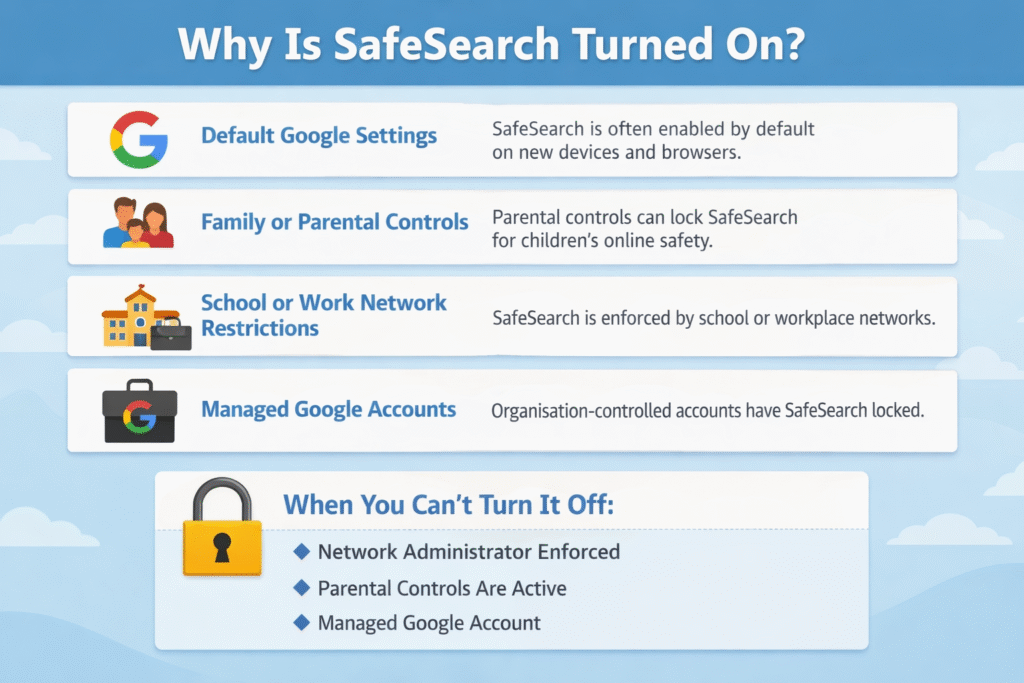
Why Is SafeSearch Turned On?

SafeSearch is a filtering feature by Google that helps block explicit or inappropriate content from search results. If you notice it is turned on automatically, there are several common reasons behind it.

Default Google Settings

In many cases, SafeSearch is enabled by default, especially on new devices or browsers. Google aims to provide a safer browsing experience, particularly for general users, by automatically filtering explicit content unless settings are manually changed.

Family or Parental Controls

SafeSearch may be turned on if parental controls are active. Platforms like Google Family Link allow parents to manage what children can access online. When enabled, SafeSearch is often locked to prevent exposure to inappropriate material.

School or Work Network Restrictions

If you are using a school, college, or workplace network, SafeSearch is often enforced at the network level. Institutions use administrative controls to ensure safe and appropriate browsing. In such cases, users typically cannot change the setting themselves.

Managed Google Accounts

Accounts managed by organisations—such as school email accounts or company profiles—may have SafeSearch permanently enabled. These settings are controlled by administrators through tools like Google Workspace, restricting user control over search preferences.

When You Can’t Turn It Off

Sometimes, SafeSearch appears “locked,” meaning you cannot disable it. This usually happens when:

  • ♦  A network administrator has enforced the setting
  • ♦  Parental controls are active
  • ♦  The Google account is managed by an organisation

In these situations, only the administrator or account manager can make changes.

How to Turn Off Google SafeSearch (Step-by-Step) Google SafeSearch is a filter that blocks explicit content from search results. If you want unrestricted results, you can turn it off easily by following the steps below. On Desktop 1. Go to the Google Search homepage. 2. Click on “Settings” at the bottom right corner. 3. Select “Search settings”. 4. Find the SafeSearch filter option. 5. Turn off (untick) the SafeSearch filter. 6. Scroll down and click “Save”. On Mobile (Browser) 1. Open your browser and go to Google Search. 2. Tap the menu icon (☰). 3. Select “Settings”. 4. Tap “Search settings”. 5. Find the SafeSearch option. 6. Toggle it off. 7. Tap “Save”. On Google App 1. Open the Google App. 2. Tap your profile icon (top right). 3. Go to “Settings”. 4. Tap “SafeSearch”. 5. Select “Off”. Important Note ♦ If SafeSearch turns back on automatically, it may be controlled by parental settings, device restrictions, or a network administrator (e.g., school or workplace)

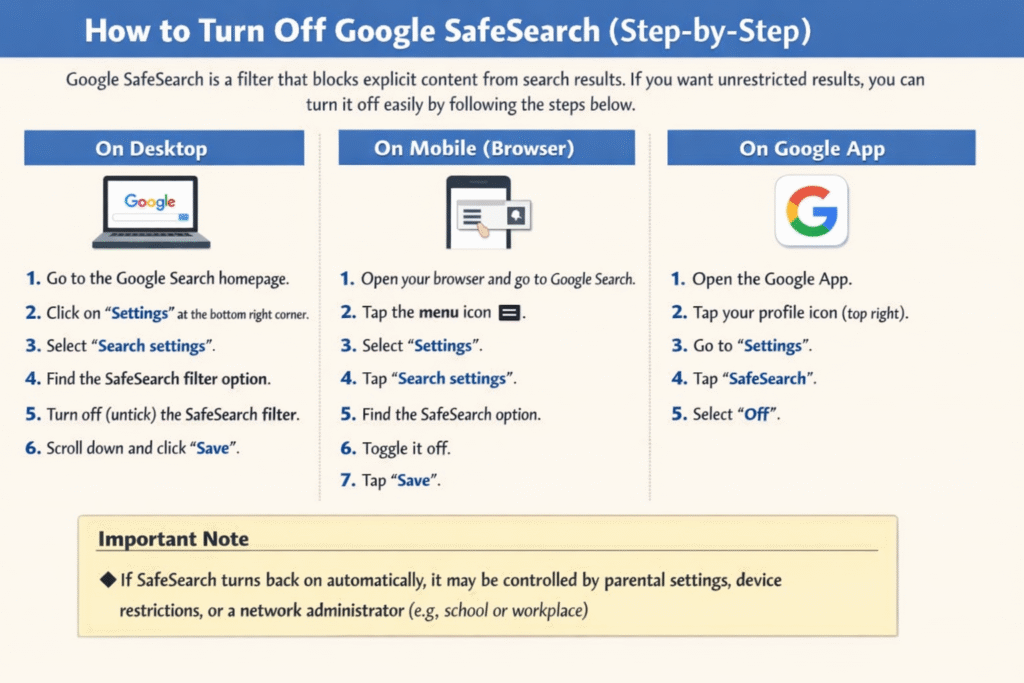
How to Turn Off Google SafeSearch (Step-by-Step)

Google SafeSearch is a filter that blocks explicit content from search results. If you want unrestricted results, you can turn it off easily by following the steps below.

On Desktop

  1. 1. Go to the Google Search homepage.
  2. 2. Click on “Settings” at the bottom right corner.
  3. 3. Select “Search settings”.
  4. 4. Find the SafeSearch filter option.
  5. 5. Turn off (untick) the SafeSearch filter.
  6. 6. Scroll down and click “Save”.

On Mobile (Browser)

  1. 1. Open your browser and go to Google Search.
  2. 2. Tap the menu icon (☰).
  3. 3. Select “Settings”.
  4. 4. Tap “Search settings”.
  5. 5. Find the SafeSearch option.
  6. 6. Toggle it off.
  7. 7. Tap “Save”.

On Google App

  1. 1. Open the Google App.
  2. 2. Tap your profile icon (top right).
  3. 3. Go to “Settings”.
  4. 4. Tap “SafeSearch”.
  5. 5. Select “Off”.

Important Note

  • ♦  If SafeSearch turns back on automatically, it may be controlled by parental settings, device restrictions, or a network administrator (e.g., school or workplace).
Why SafeSearch Might Not Turn Off

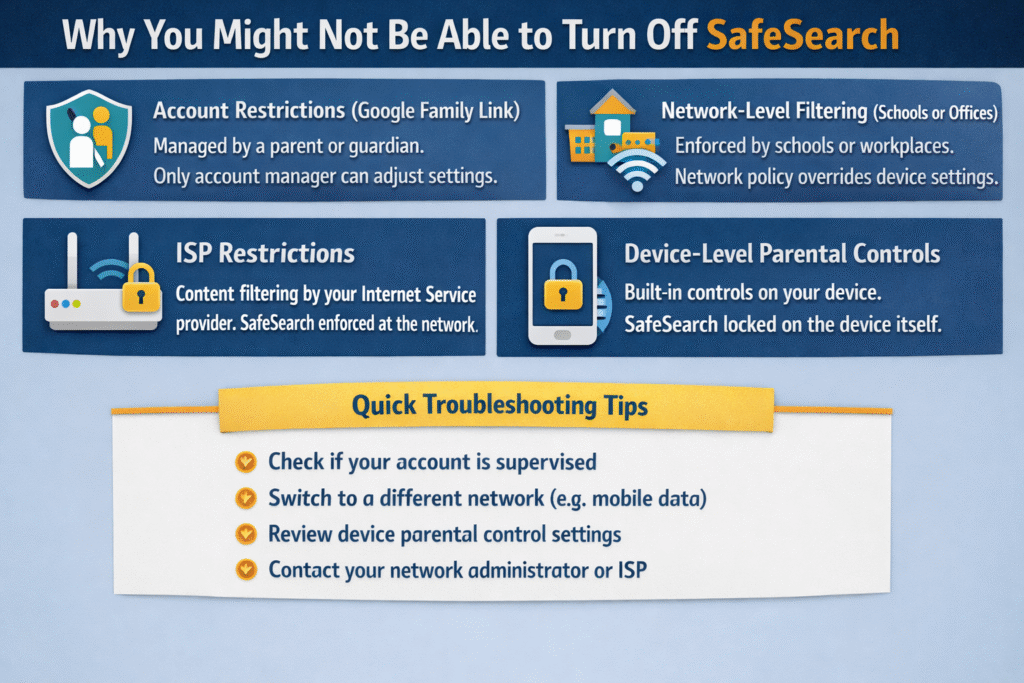
Why You Might Not Be Able to Turn Off SafeSearch

If you’re trying to disable SafeSearch but find the option locked or unchangeable, there are several common reasons behind it. In many cases, the restriction isn’t controlled directly by your browser but by external settings designed to maintain safer browsing environments.

Account Restrictions (Google Family Link)

If your account is managed through Google Family Link, SafeSearch may be enforced by a parent or guardian. This is especially common for child or supervised accounts. In such cases, only the account manager can adjust or disable SafeSearch settings.

Network-Level Filtering (Schools or Offices)

Institutions like schools, universities, and workplaces often apply network-level restrictions. These filters automatically enforce SafeSearch across all connected devices to ensure safe and appropriate browsing. Even if you change settings on your device, the network policy may override them.

ISP Restrictions

Some Internet Service Providers (ISPs) apply content filtering at the network level. This means SafeSearch can be automatically enabled for all users under that connection. These controls are typically designed to protect households but can limit your ability to change settings manually.

Device-Level Parental Controls

Devices themselves may have built-in parental controls that enforce SafeSearch. Whether it’s a smartphone, tablet, or computer, these settings can restrict access to certain content and lock SafeSearch in place without obvious indicators.

Quick Troubleshooting Tips

If you’re unable to turn off SafeSearch, try the following:

  • ♦  Check if your account is supervised or managed
  • ♦  Switch to a different network (e.g., mobile data instead of Wi-Fi)
  • ♦  Review device parental control settings
  • ♦  Contact your network administrator or ISP for clarification

Understanding where the restriction is coming from is the key to resolving the issue quickly.

How to Fix SafeSearch Won’t Turn Off If SafeSearch won’t turn off, it is usually due to account restrictions, network settings, or browser issues. Below are simple and effective methods to resolve the problem quickly. 1. Sign Out of Managed Account If you are using a school, work, or family-managed account, SafeSearch may be locked by default. Sign out of that account and switch to a personal account. Managed accounts often enforce restrictions that you cannot change manually. 2. Check Parental Control Apps Parental control tools or family safety apps can force SafeSearch to stay on. Review apps like device parental controls or family settings and disable SafeSearch restrictions if needed. You may require admin permission to make changes. 3. Switch Networks (Wi-Fi to Mobile Data) Sometimes, your network provider or Wi-Fi router enforces SafeSearch. Try switching from Wi-Fi to mobile data or another network. If SafeSearch turns off, the issue is likely network-level filtering. 4. Clear Browser Cache Stored cache and cookies can cause settings to remain stuck. Clear your browser cache and cookies, then restart the browser. This often resolves persistent SafeSearch issues. 5. Try a Different Browser If the problem continues, switch to another browser. Sometimes browser-specific extensions or settings interfere with SafeSearch controls. Testing on a different browser helps identify if that’s the cause.

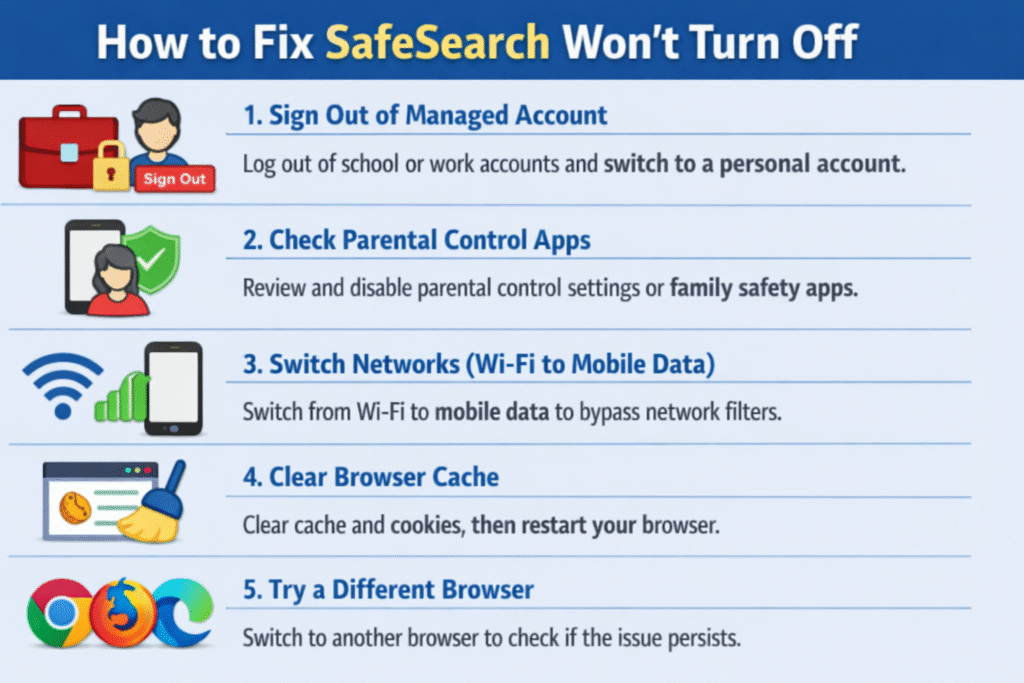
How to Fix SafeSearch Won’t Turn Off

If SafeSearch won’t turn off, it is usually due to account restrictions, network settings, or browser issues. Below are simple and effective methods to resolve the problem quickly.

1. Sign Out of Managed Account

If you are using a school, work, or family-managed account, SafeSearch may be locked by default. Sign out of that account and switch to a personal account. Managed accounts often enforce restrictions that you cannot change manually.

2. Check Parental Control Apps

Parental control tools or family safety apps can force SafeSearch to stay on. Review apps like device parental controls or family settings and disable SafeSearch restrictions if needed. You may require admin permission to make changes.

3. Switch Networks (Wi-Fi to Mobile Data)

Sometimes, your network provider or Wi-Fi router enforces SafeSearch. Try switching from Wi-Fi to mobile data or another network. If SafeSearch turns off, the issue is likely network-level filtering.

4. Clear Browser Cache

Stored cache and cookies can cause settings to remain stuck. Clear your browser cache and cookies, then restart the browser. This often resolves persistent SafeSearch issues.

5. Try a Different Browser

If the problem continues, switch to another browser. Sometimes browser-specific extensions or settings interfere with SafeSearch controls. Testing on a different browser helps identify if that’s the cause.

Is It Safe to Turn Off SafeSearch?

SafeSearch is a filtering feature provided by search engines to block explicit or inappropriate content from search results. Turning it off can be safe in certain situations, but it largely depends on who is using the device and the purpose of the search.

One of the main advantages of disabling SafeSearch is access to unrestricted search results. This can be useful for adults, researchers, or professionals who need complete and unfiltered information for academic, medical, or creative purposes. It allows users to explore a broader range of content without limitations, which can improve the accuracy and depth of research.

However, there are also notable risks. Turning off SafeSearch increases the chances of encountering explicit, graphic, or inappropriate material. This can be particularly harmful for children or in shared environments where unintended exposure may occur. It may also lead to distractions or unsafe browsing experiences if not used responsibly.

In general, turning off SafeSearch is appropriate for adults who require unrestricted access for legitimate reasons, such as research or professional use. For households with children or public devices, keeping SafeSearch enabled is strongly recommended to ensure a safer and more controlled browsing environment.

Quick tips for managing SafeSearch

Quick Tips for Managing SafeSearch

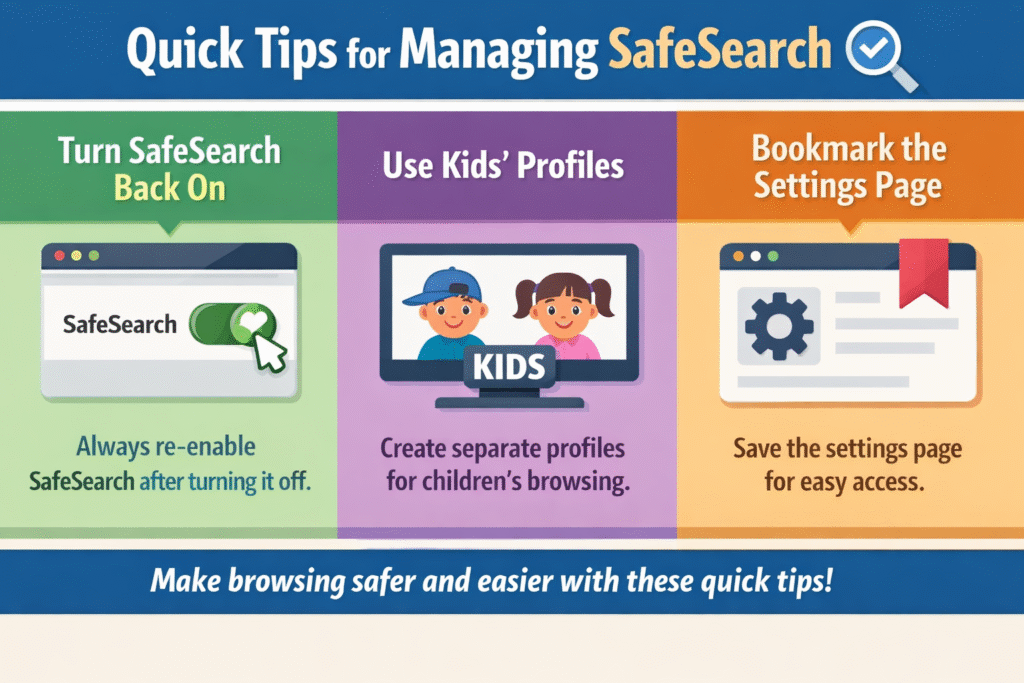
Managing SafeSearch effectively helps you control the type of content that appears during online searches, making browsing safer and more appropriate—especially on shared devices. One simple habit is to turn SafeSearch back on anytime after disabling it temporarily. This ensures that content filtering is quickly restored whenever needed, reducing the risk of unwanted results.

Another helpful tip is to use different profiles for kids. By setting up separate user accounts or browser profiles, you can customise SafeSearch settings specifically for children while keeping your own preferences unchanged. This creates a safer online environment and allows better supervision of what younger users can access.

Finally, consider bookmarking the settings page for quick access. This saves time and makes it easy to adjust SafeSearch settings whenever required, without navigating through multiple steps. With these quick tips, managing SafeSearch becomes simple, efficient, and more reliable for everyday use.

Conclusion

Google SafeSearch is a helpful feature designed to filter explicit content and create a safer browsing experience, especially for families and younger users. However, it is entirely optional and can be adjusted based on individual preferences. As explained, turning SafeSearch off is quick and straightforward in most cases, whether you’re using a desktop or mobile device. Understanding how to manage these settings gives you greater flexibility and control over what you see online. Now you can control your search experience fully.

FAQs — Google SafeSearch Settings Explained How to Turn It Off Quickly

  1. 1. How do I turn off SafeSearch on Google?
    Go to Google, click on Settings → Search settings, find SafeSearch filter, and toggle it off. Scroll down and click Save to apply the changes.
  2. 2. Why is SafeSearch locked on?
    SafeSearch may be locked by a school, workplace, or network administrator. It can also be enforced by parental controls, ISP restrictions, or Google account settings.
  3. 3. Can I disable SafeSearch permanently?
    You can turn it off, but it may not stay disabled on shared or public devices. Browsers, accounts, or network settings can reset SafeSearch automatically.
  4. 4. Is SafeSearch automatically turned on?
    Yes, Google often enables SafeSearch by default, especially for younger users or accounts with content restrictions. It helps filter explicit results automatically.
  5. 5. How do I turn off SafeSearch on my phone?
    Open the Google app or browser, go to Settings → Search settings, switch off SafeSearch, and tap Save. The steps are similar on both Android and iPhone.
  6. 6. Does SafeSearch work across all devices?
    SafeSearch settings apply to the device and account you’re using. If you switch devices or browsers, you may need to adjust the setting again.

Article by

Sam Walker

Sam Walker is an education specialist and author at One Education, bringing over 4 years of experience in creating practical resources and strategies to support teachers and enhance student learning.

top

Hear What Our Learners Say About Us

Home Search Cart