How to Unblock People on Facebook Quickly

April 21, 2026 | 10 minutes | 680 Readers

Blocked someone on Facebook and now want to reconnect? You’re not alone. Whether it was a moment of frustration, a simple misunderstanding, or even an accidental tap, blocking someone can happen quickly—but undoing it isn’t always as obvious. Sometimes, you just change your mind and want to restore that connection without any hassle. The good news is that unblocking someone on Facebook is much easier than it seems. You don’t need to navigate complicated settings or spend time searching through

rating

Bestselling Course

View Details SAVE 94% NOW
How to Unblock People on Facebook Quickly

Blocked someone on Facebook and now want to reconnect? You’re not alone. Whether it was a moment of frustration, a simple misunderstanding, or even an accidental tap, blocking someone can happen quickly—but undoing it isn’t always as obvious. Sometimes, you just change your mind and want to restore that connection without any hassle.

The good news is that unblocking someone on Facebook is much easier than it seems. You don’t need to navigate complicated settings or spend time searching through endless options. With the right steps, you can reverse the action in just a few moments.

In this guide, you’ll discover a clear, quick, and no-confusion method to unblock people on Facebook, so you can reconnect smoothly and get back to normal without any stress.

Why People Block (and Unblock) on Facebook

People choose to block others on Facebook for a variety of everyday reasons, and it is not always as dramatic as it may seem. In many cases, it comes down to temporary disagreements—an argument, misunderstanding, or moment of frustration that leads someone to create distance online. Blocking can feel like a quick way to manage emotions and avoid further conflict.

Privacy concerns are another common factor. Some users prefer to limit who can view their posts, personal updates, or activity, especially if they feel their boundaries are being crossed. Others take a more practical approach by cleaning up their friend lists, removing connections that are no longer relevant or meaningful to them.

Interestingly, not all blocks are intentional. Accidental blocking happens more often than people realise, especially when navigating settings or managing multiple profiles. Whether deliberate or unintentional, blocking is often a temporary action rather than a permanent decision.

Whatever your reason, unblocking someone is easier than you think.

How to Unblock Someone on Facebook

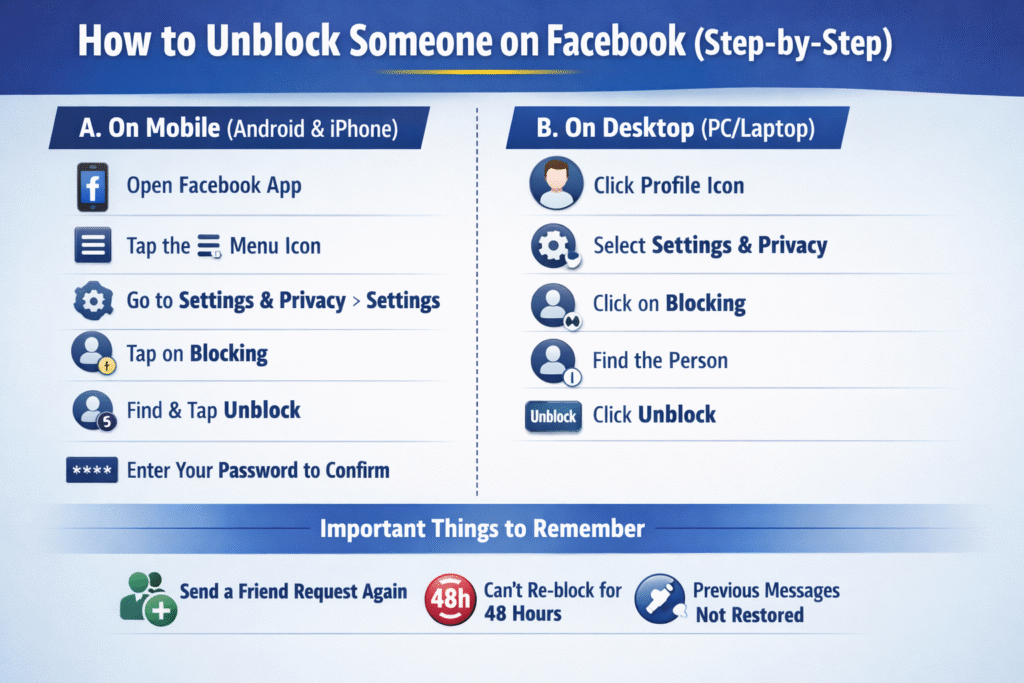
How to Unblock Someone on Facebook (Step-by-Step)

Unblocking someone on Facebook is a simple process, whether you’re using a mobile device or a desktop. If you’ve previously blocked someone and now wish to reconnect, you can reverse the action in just a few steps. Below is a complete guide to help you unblock someone quickly and easily.

A. How to Unblock Someone on Facebook Using Mobile (Android & iPhone)

Follow these steps on the Facebook mobile app:

  1. 1. Open the Facebook app on your phone
  2. 2. Tap the ☰ (menu icon) in the top or bottom corner
  3. 3. Scroll down and select Settings & Privacy, then tap Settings
  4. 4. Find and tap on Blocking
  5. 5. You will see a list of blocked users
  6. 6. Locate the person you want to unblock and tap Unblock
  7. 7. Enter your Facebook password to confirm

Once completed, the person will be removed from your blocked list.

Find the Course That Suits You!

We create outstanding professionals in Employability, Business, Health Care, Marketing, Language, and Functional Skills. Whether you're starting or advancing your career, we turn your passion into success as the UK’s most trusted e-learning course provider.
5000+ course

B. How to Unblock Someone on Facebook Using Desktop (PC/Laptop)

Follow these steps on a computer:

  1. 1. Click on your profile icon in the top-right corner
  2. 2. Select Settings & Privacy from the dropdown menu
  3. 3. Click on Settings
  4. 4. From the left-hand menu, select Blocking
  5. 5. Find the person you want to unblock
  6. 6. Click Unblock next to their name

Important Things to Remember

  • After unblocking, you will need to send a friend request again if you want to reconnect
  • You cannot re-block the same person for 48 hours
  • Unblocking does not automatically restore previous connections or messages
Important Things to Know Before Unblocking

Important Things to Know Before Unblocking

Unblocking someone may seem like a simple click, but there are a few important details you should understand before taking that step. Knowing these can help you avoid confusion, awkward situations, or unintended consequences.

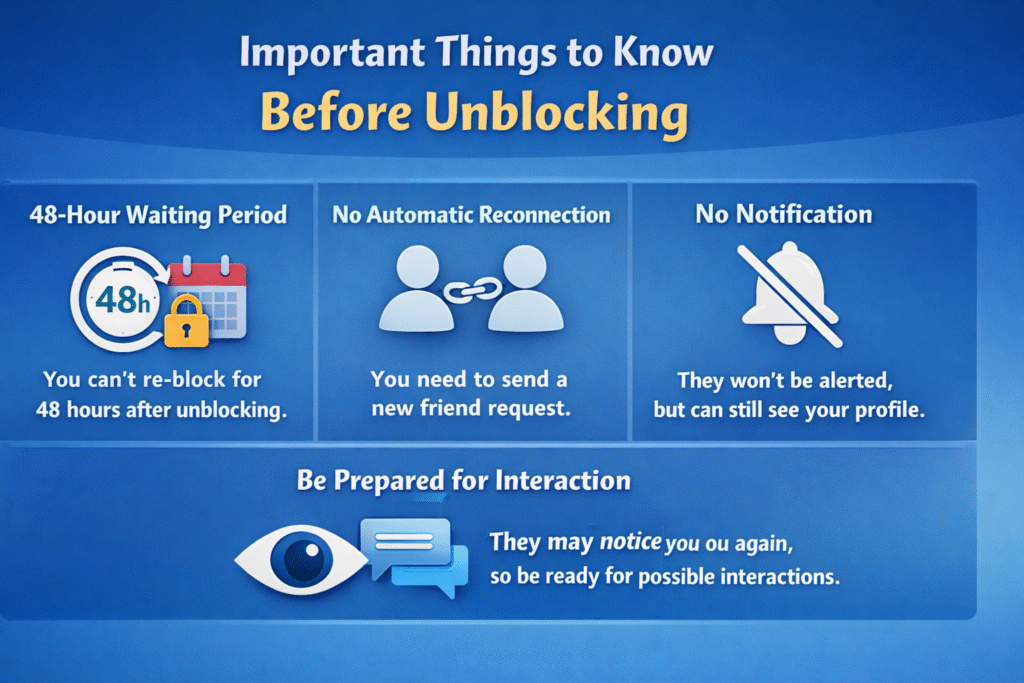
Firstly, once you unblock someone, you cannot block them again immediately. Most platforms, including Facebook, enforce a 48-hour waiting period before you can reapply a block. This means you should be certain about your decision, as you will not be able to reverse it straight away if things feel uncomfortable.

Another key point is that unblocking does not restore your previous connection. You won’t automatically become friends again, and your profiles will not reconnect as they were before. If you wish to rebuild that connection, you will need to send a new friend request, and the other person must accept it.

It’s also worth noting that the person you unblock will not receive a notification. However, they may still notice your presence—for example, if your profile appears in search results or mutual spaces. This can sometimes lead to unexpected interactions, so it’s wise to consider whether you’re ready for that possibility.

Overall, unblocking is more than just removing a restriction—it’s a step that can reopen communication. Taking a moment to understand these points ensures you stay in control of your online interactions and avoid unnecessary surprises.

What Happens After You Unblock Someone?

What Happens After You Unblock Someone?

Unblocking someone often brings a sense of relief, but it can also raise a few important questions. Once you remove the restriction, your interaction settings return to a more open state, though not everything goes back to exactly how it was before. Understanding what actually changes can help you manage your privacy and expectations more confidently.

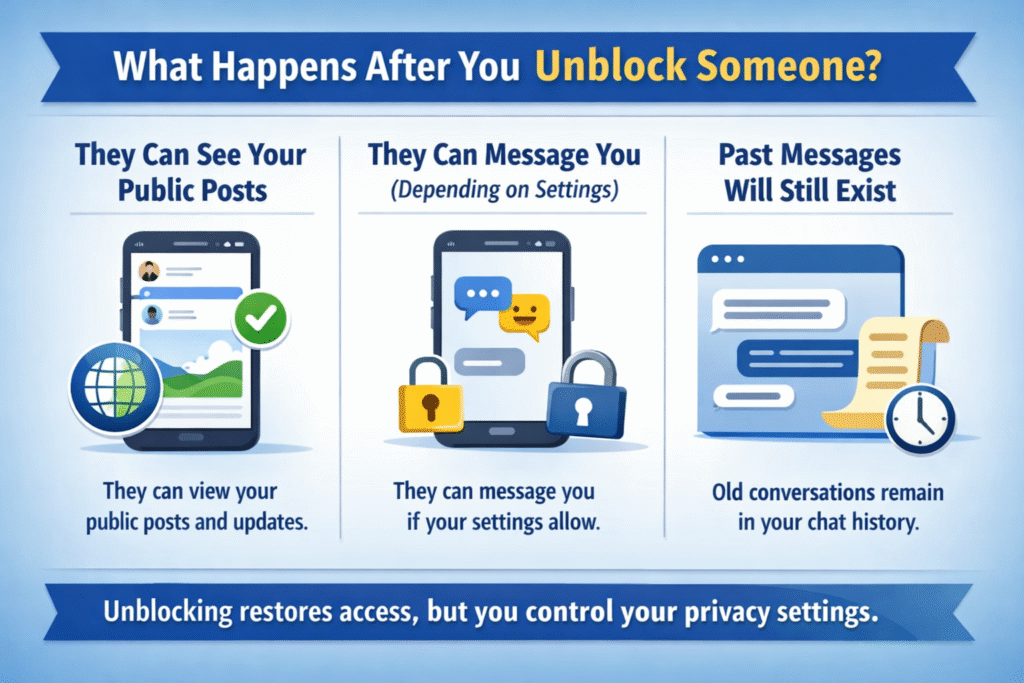
They Can See Your Public Posts

After unblocking, the person regains access to any content you’ve shared publicly. This means posts, profile updates, and any information visible to “Everyone” can now appear to them again. However, your private posts or content shared with limited audiences will still remain restricted unless you choose to change your privacy settings.

They Can Message You (Depending on Privacy Settings)

Unblocking restores the ability for that person to contact you. If your messaging settings allow messages from everyone or friends of friends, they may be able to send you messages directly. If you prefer to avoid communication, it’s a good idea to review and adjust your messaging privacy settings accordingly.

Past Messages Will Still Exist

Unblocking does not delete your previous conversations. Any messages exchanged before blocking will remain in your chat history. This can be useful if you need to refer back to earlier discussions, but it also means there is no “reset” of past interactions.

Overall, unblocking someone gives them access to interact with you again, but you still have full control over your privacy settings and how much access they truly have.

Troubleshooting

Troubleshooting: Can’t Unblock Someone?

If you’re trying to unblock someone on Facebook and it’s not working as expected, don’t worry—this is a common issue and usually easy to fix. Below are the most likely reasons along with practical solutions you can apply straight away.

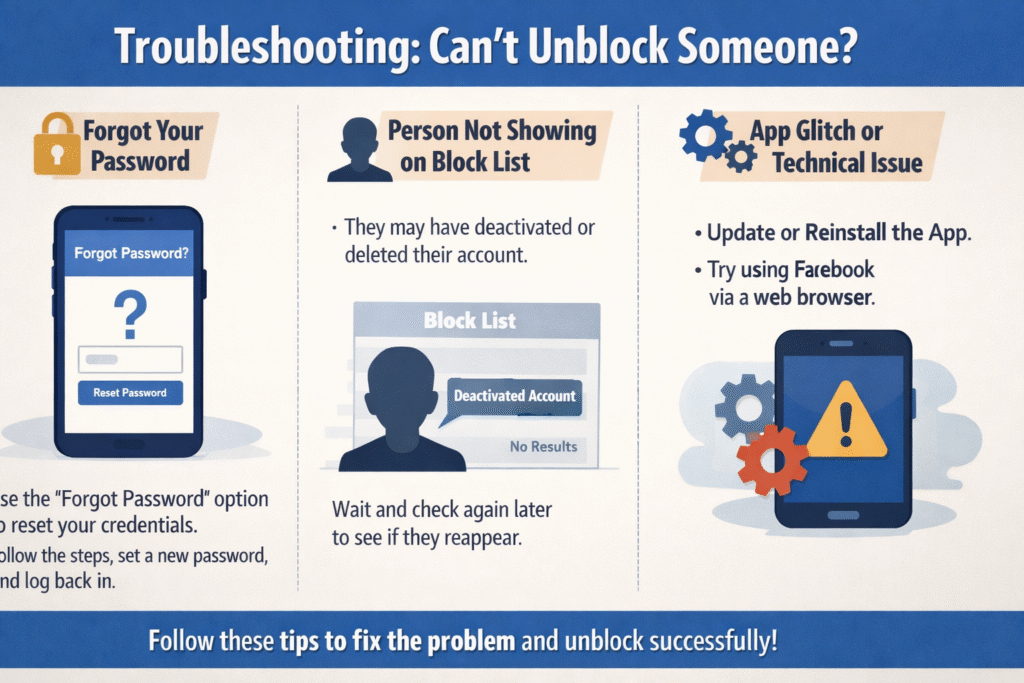
Forgot Your Password

If you can’t access your account, you won’t be able to manage your blocked list.

Solution:
Use the “Forgot Password” option on the login page to reset your credentials. Follow the verification steps via email or phone, set a new password, and log back in to proceed with unblocking.

Person Not Showing on Block List

If you can’t find the person in your blocked list, it may not be a technical issue.

Possible Reason:
The person may have deactivated or deleted their account, which removes them from your visible blocked list.

What You Can Do:
Wait and check again later. If they reactivate their account, their name should reappear, allowing you to unblock them.

App Glitch or Technical Issue

Sometimes the issue is simply due to a bug or outdated app version.

Solution:

  • Update the Facebook app to the latest version
  • If the problem persists, uninstall and reinstall the app
  • You can also try accessing Facebook via a web browser to see if the issue is app-specific
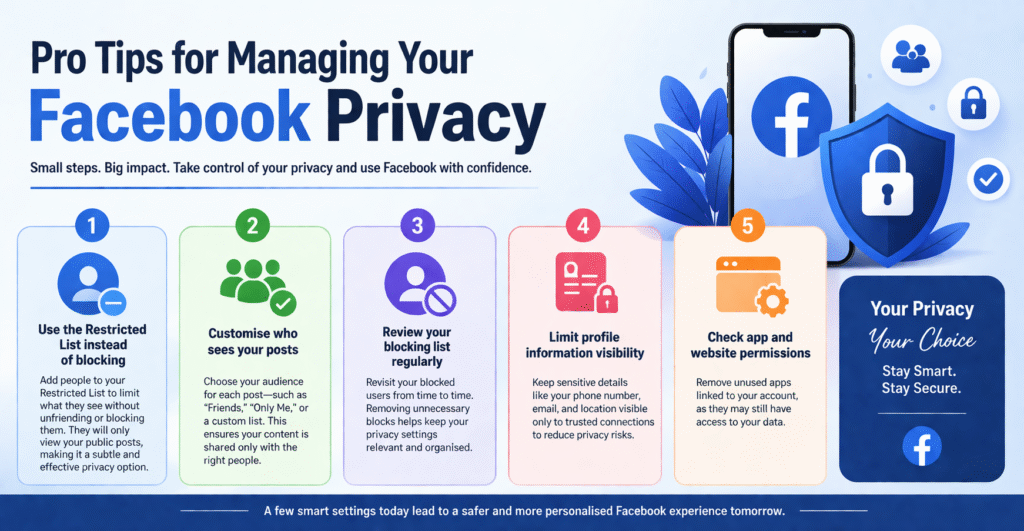
Pro Tips for Managing Your Facebook Privacy

Pro Tips for Managing Your Facebook Privacy

Managing your Facebook privacy doesn’t have to be complicated. With a few smart adjustments, you can control who sees your content, protect your personal information, and use the platform with greater confidence.

Use the Restricted List instead of blocking:

Add people to your Restricted List to limit what they see without unfriending or blocking them. They will only view your public posts, making it a subtle and effective privacy option.

Customise who sees your posts:

Choose your audience for each post—such as “Friends,” “Only Me,” or a custom list. This ensures your content is shared only with the right people.

Review your blocking list regularly:

Revisit your blocked users from time to time. Removing unnecessary blocks helps keep your privacy settings relevant and organised.

Limit profile information visibility:

Keep sensitive details like your phone number, email, and location visible only to trusted connections to reduce privacy risks.

Check app and website permissions:

Remove unused apps linked to your account, as they may still have access to your data.

By following these simple yet effective tips, you can stay in control of your Facebook privacy while maintaining a secure and personalised social media experience.

Conclusion

Unblocking someone on Facebook is a quick and simple process that takes less than a minute. Whether you want to reconnect with someone or simply organise your privacy settings, the steps are straightforward and easy to follow. Go ahead and make the change—it’s a small action that gives you more control over your social experience.

FAQs — What Is Social Responsibility? Meaning, Types and Advantages

  1. 1. How do I unblock someone on Facebook?
    Go to Settings, open the “Blocking” section, and click “Unblock” next to the person’s name. Confirm your choice to remove them from your blocked list.
  2. 2. Can someone tell if I unblock them?
    No, Facebook does not notify users when they are unblocked. However, they might notice if they can view your profile again.
  3. 3. How long does it take to unblock someone?
    Unblocking happens instantly once you confirm the action.
  4. 4. Can I message someone immediately after unblocking?
    Yes, you can message them, but it depends on your privacy settings and whether you are connected.
  5. 5. Do I need to send a friend request again after unblocking?
    Yes, unblocking does not restore your previous connection. You need to send a new friend request.
  6. 6. Can I block someone again after unblocking them?
    Yes, but Facebook may require you to wait up to 48 hours before blocking the same person again.

Find the Course That Suits You!

We create outstanding professionals in Employability, Business, Health Care, Marketing, Language, and Functional Skills. Whether you're starting or advancing your career, we turn your passion into success as the UK’s most trusted e-learning course provider.
5000+ course

Article by

Sam Walker

Sam Walker is an education specialist and author at One Education, bringing over 4 years of experience in creating practical resources and strategies to support teachers and enhance student learning.

top

Hear What Our Learners Say About Us

OE Footer
Home Search Cart