DaVinci Resolve vs Premiere Pro for Beginners: Which Should You Learn First in 2026?

November 19, 2026 | By Michael Hansen | 9 minutes | 303 Readers

If you want to start editing videos for YouTube, TikTok or your own projects, two names come up more than any others: DaVinci Resolve and Adobe Premiere Pro. Both are professional tools used on real productions. Both can cut a fast montage, add titles, fix colour and export for any platform. So which should a beginner learn first? Here is an honest comparison, with no affiliate links and no hype. The quick verdict Learn DaVinci Resolve first if you are

If you want to start editing videos for YouTube, TikTok or your own projects, two names come up more than any others: DaVinci Resolve and Adobe Premiere Pro. Both are professional tools used on real productions. Both can cut a fast montage, add titles, fix colour and export for any platform.

So which should a beginner learn first? Here is an honest comparison, with no affiliate links and no hype.

The quick verdict

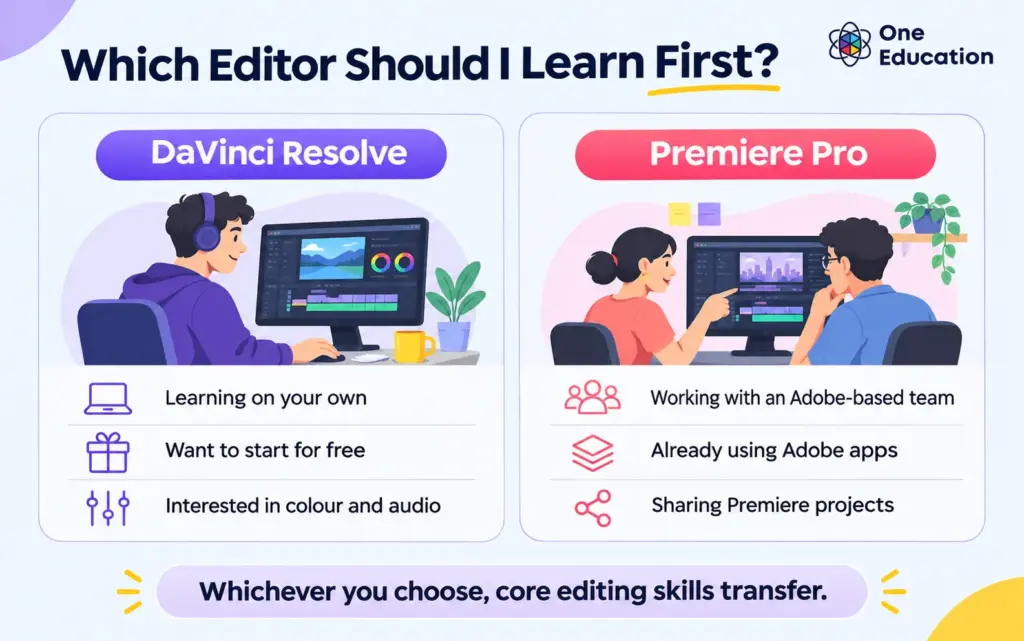
Learn DaVinci Resolve first if you are teaching yourself, working alone, and do not want to pay for software while you find out whether you enjoy editing. The free version is powerful enough for almost all beginner and YouTube work.

Learn Premiere Pro first if you are about to join a team, agency or course that already uses Adobe tools, or you know you will rely heavily on After Effects and Photoshop alongside your edits.

Beginner's decision guide showing when to choose DaVinci Resolve or Adobe Premiere Pro.

Once you have learned one properly, moving to the other takes weeks, not months. The core skills (cutting, pacing, audio and colour) transfer.

Side-by-side comparison

DaVinci Resolve Premiere Pro
Cost to start Free version available; a one-off paid Studio version adds extra features Subscription only; the single-app plan was listed at £21.98 a month incl. VAT on Adobe's UK site at the time of writing
Platforms Windows, Mac and Linux Windows and Mac
Interface Separate "pages" for each job: Media, Cut, Edit, Fusion, Color, Fairlight, Deliver One flexible workspace with panels you rearrange
Learning curve Clear once you understand the pages; colour tools can feel deep Familiar if you have used other Adobe apps
Colour grading Industry-leading, built in Good, simpler, using the Lumetri tools
Audio Full audio workspace (Fairlight) built in Solid basic audio; heavier work often moves to Audition
Motion graphics Fusion page built in (node-based) Usually paired with After Effects
Teamwork and agencies Growing, especially in post-production Very common in agencies, marketing teams and newsrooms

Who should pick DaVinci Resolve?

DaVinci Resolve suits you if:

  • You do not want a monthly bill while you learn
  • You are editing your own footage: gaming clips, vlogs, short films
  • You are interested in colour, the bit that makes videos look “cinematic”
  • You use Linux, or want one program that covers editing, colour, audio and effects

The main thing beginners struggle with is that Resolve’s tools are split into pages. Once you understand that the Cut and Edit pages are for editing, Color is for grading, Fairlight is for audio and Deliver is for exporting, it becomes very logical.

Annotated DaVinci Resolve Edit page showing the media pool, viewer, timeline and page navigation.

Who should pick Premiere Pro?

Premiere Pro suits you if:

  • You are joining an agency, marketing team or course that already works in Adobe
  • You already use Photoshop, Illustrator or After Effects and want everything to work together
  • You need to share projects with editors who use Premiere
  • You are happy to pay a subscription for a widely used industry standard
Annotated Adobe Premiere Pro workspace showing project panel, programme monitor, timeline and workspace controls.

The main downside for beginners is cost. You pay for as long as you use it, which adds up over a year of learning.

What a beginner actually needs from an editor

For your first ten videos, you will use a small set of features, and both programs do all of them well:

  1. Importing and organising clips
  2. Cutting on the timeline and trimming shots
  3. Adding music and balancing audio levels
  4. Simple titles and captions
  5. Basic colour correction so clips match
  6. Exporting with a YouTube or social preset

Neither program will make your videos good on its own. Pacing, choosing the strongest moments and cutting to the beat matter far more than which logo is on the software.

This is often called environmental storytelling, and it is one of the best skills a game writer can show in a portfolio. Our guide on how to become a narrative designer has exercises to practise it.

A learning path for each

DaVinci Resolve in four weeks

  • Week 1: Media page and Cut page. Import clips and make a 30-second edit
  • Week 2: Edit page. Use markers on the beat, trim, use speed changes and titles
  • Week 3: Color page. Make primary corrections and match one clip to another
  • Week 4: Fairlight and Deliver. Balance audio, export for YouTube, then reframe for vertical

Premiere Pro in four weeks

  • Week 1: Set up projects and bins, then make your first cut on the timeline
  • Week 2: Trim, use transitions, add text and Essential Graphics templates
  • Week 3: Use Lumetri colour, plus audio levels and the Essential Sound panel
  • Week 4: Export presets, then try After Effects basics for one animated title
Four-week beginner video editing roadmap comparing DaVinci Resolve and Premiere Pro learning milestones.

What to edit first

Edit footage you shot yourself, or footage you have clear permission to use. That keeps you safe from copyright problems, and it also teaches you more: you will see what makes a shot usable and start filming better.

Young UK video creator editing original footage at a modest home desk with a camera and notebook.

Good first projects:

  • A 60-second “day in my life” or “my desk setup” video
  • A 30-second montage cut to a royalty-free music track
  • A one-minute tutorial explaining something you know well

Keep each project short and finish it. Ten short finished edits teach you more than one long unfinished one.

If you want to see what a first montage edit looks like step by step, watch our video walkthrough on cutting a montage on the beat in DaVinci Resolve.

Start editing this week

The Video Editing – DaVinci Resolve course on One Education walks you through every page of Resolve, from downloading the software and importing media to colour, Fairlight audio, Fusion, green screen, mask tracking, multicam and exporting. It finishes with a full edit of a short film. The course has nearly three hours of video and costs £29, or it is included in the Unlimited Membership (£49 for a year of access to 5,000+ courses).

Prefer Adobe? The Adobe Premiere Pro and After Effects Bundle covers both tools together.

One Education · Video Editing Course

Start Editing with DaVinci Resolve

Go from your first cut to a finished video with practical lessons in editing, colour, audio and effects.

Online, self-paced course
View DaVinci Resolve Course

Frequently Asked Questions

Yes. Blackmagic Design offers a free version of DaVinci Resolve that includes editing, colour, audio, effects and export. The paid Studio version adds extra features such as advanced effects, wider hardware support and higher-end formats, but most beginners do not need it.

Not really, just different. Resolve splits its tools into pages, which takes a little getting used to. Premiere feels familiar if you already use Adobe software. Most beginners can make a simple edit in either program within a day.

Both are excellent for YouTube. Resolve is the better choice if you want to avoid a subscription. Premiere is the better choice if you also use other Adobe apps or work with an Adobe-based team.

Yes. Cutting, trimming, pacing, colour and audio skills transfer directly. Most editors who know one program well can become comfortable in the other within a few weeks.

top
Home Courses Search